Learn how to use PayGo for Copilot Studio, configure governance to control who can author agents, and start building your first agent—no M365 Copilot Premium license required.
A common assumption when getting started with Copilot Studio is that you need a full Microsoft 365 Copilot Premium license. That assumption is wrong—and it’s one worth clearing up early, especially if you’re a developer testing on a dev tenant or an admin looking to roll out agents without committing to a premium seat for everyone.
As long as Pay-As-You-Go (PAYGO) billing is configured, you can build and use Copilot Studio agents and pay only for what you actually consume. This post covers the three things you need to get there: setting up PAYGO, governing who in your tenant can access Copilot Studio, and start using it.
Part 1: Set Up PAYGO Billing
PAYGO is the foundation. Without it, users hit a wall asking them to sign up for a trial or purchase a license. With it, usage is metered against an Azure subscription—so you get the full Copilot Studio experience without upfront seat costs.
I’ve covered the full PAYGO setup process in a previous post. Follow that guide first before continuing here:
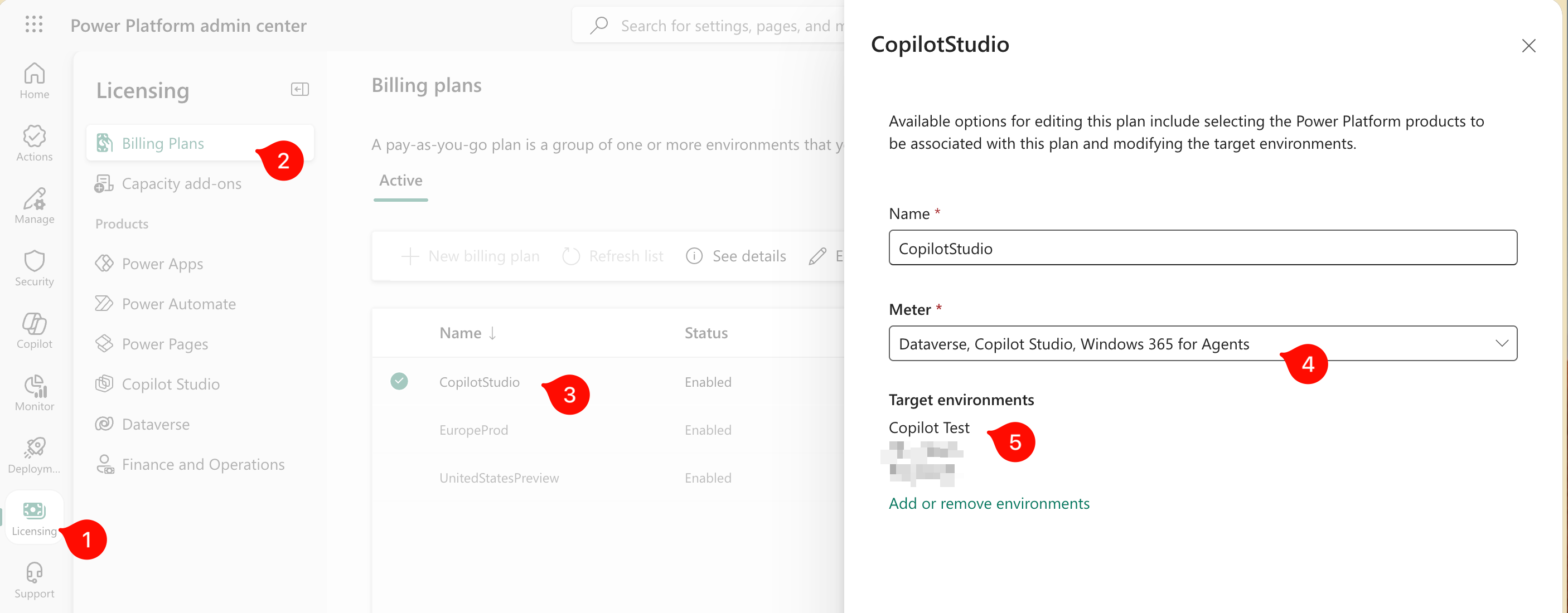
Open the billing plan you want to use (e.g., the one tied to Copilot Studio).
Under the Meters section, confirm that Copilot Studio is listed.
Under Target environments, add any environment where you want agents to be available.
This is the step that actually connects a specific Power Platform environment to your PAYGO billing plan. If an environment is missing from that list, Copilot Studio won’t bill through PAYGO there and users may be prompted for a license they don’t have.
Part 2: Copilot Studio Governance — Who Can Author Agents
Having PAYGO running doesn’t mean you want every user in your tenant spinning up agents. This is where governance comes in. There are two controls worth knowing: one that restricts who can author agents, and one that blocks users from bypassing your setup with a self-service trial.
Control Who Can Use Copilot Studio
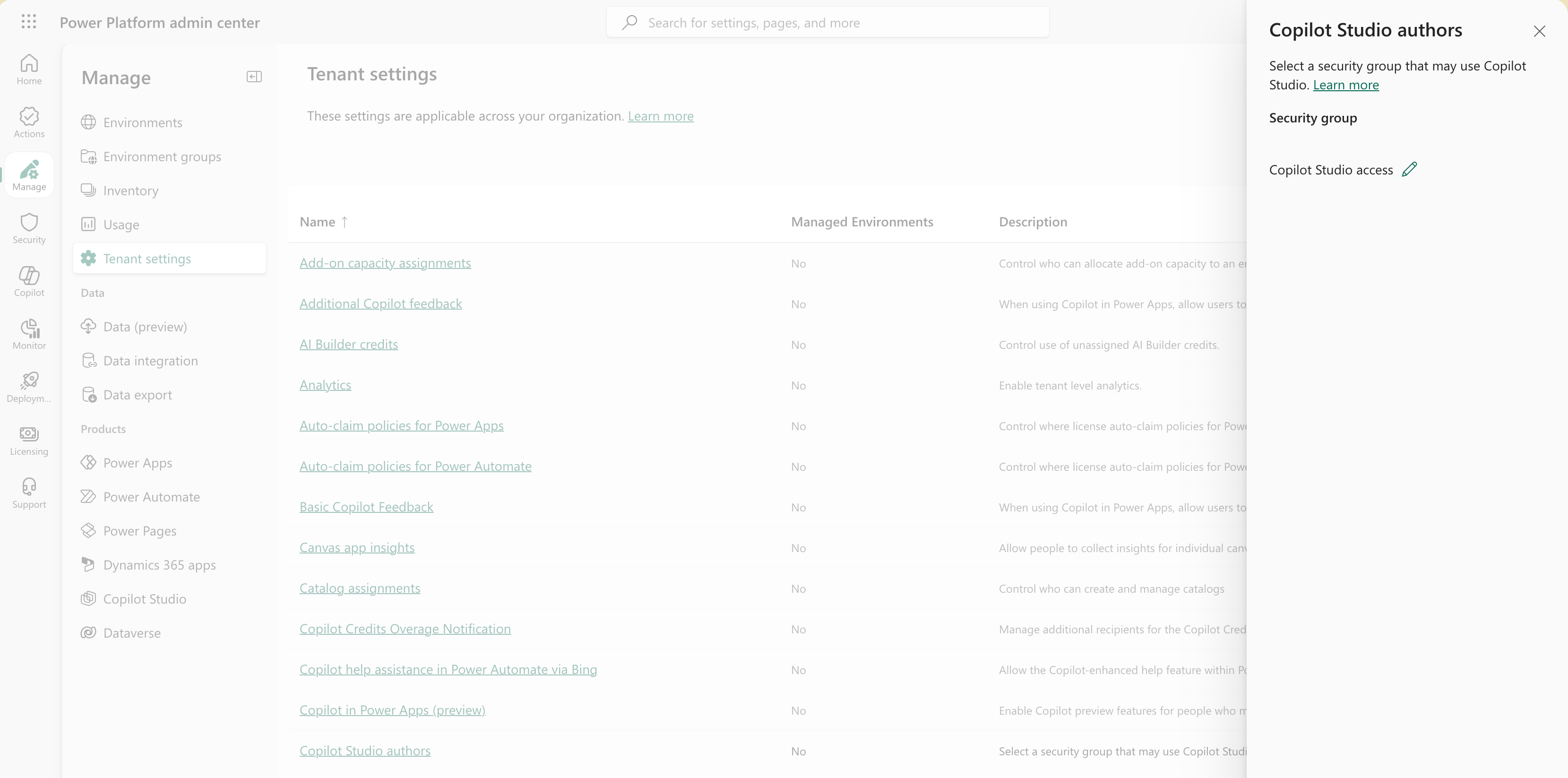
The Power Platform Admin Center gives you a tenant-level setting to restrict Copilot Studio authoring to a specific group of users.
Add the users who should be allowed to create and manage Copilot Studio agents.
Once that group is assigned in the Copilot Studio authors setting, only members of that group can author agents. Removing someone from the Entra ID group is all it takes to revoke their access—no separate offboarding step needed.
Block Self-Service Trial Signups
Here’s the part that trips people up: by default, users in your tenant can sign themselves up for a Copilot Studio trial license. This sidesteps your governance setup entirely. If you want PAYGO to be the only path, you need to disable that self-service option.
This reads the two relevant policy flags. AllowedToSignUpEmailBasedSubscriptions is the one controlling self-service trial signups. If it returns True, users can currently sign themselves up for a trial.
You need Policy.ReadWrite.Authorization to modify the authorization policy. A Global Admin or Privileged Role Administrator role is required to complete this successfully.
Setting AllowedToSignUpEmailBasedSubscriptions to $false prevents users from signing up for any email-based subscription—including the Copilot Studio trial. From this point on, the only way into Copilot Studio is through PAYGO (or a paid license).
Part 3: Start Using Copilot Studio
With PAYGO billing set up, your environment linked, and governance in place, you’re ready to test. Navigate to:
Switch to the environment you linked to your PAYGO billing plan.
In the left navigation, click Agents.
Select Create blank agent to start building.
How to tell if PAYGO is working correctly:
If you disabled the trial option and Copilot Studio opens normally, you’re good. Usage is being metered through your Azure subscription.
If you didn’t disable the trial and Copilot Studio opens without prompting for a trial signup, it’s also working—but be aware users may have been auto-enrolled in a trial rather than PAYGO. Check your billing plan to confirm meters are registering.
The clearest validation path: disable trials first (Part 2), then open Copilot Studio. If it loads without any license prompt, PAYGO is active and your governance configuration is correct.
Wrapping Up
You don’t need M365 Copilot Premium to get real work done with Copilot Studio. With PAYGO as your billing foundation, a security group controlling authoring access, and self-service trials blocked, you have a clean, governed set-up that scales from a single developer testing on a dev tenant to a broader rollout across your organization.
The main controls in play here:
PAYGO billing via Power Platform Admin Center — what enables metered usage.
Copilot Studio authors security group — what controls who can build agents.
AllowedToSignUpEmailBasedSubscriptions policy — what prevents trial bypass.
Together, these give you cost control, least-privilege access, and a predictable governance model—without the overhead of managing premium seat assignments.