
When your flow reads a shared mailbox calendar using the Office 365 Outlook → Get events (V4) connector, it can fail in a way that looks like a permissions problem—especially after someone removes and re-adds the mailbox owner (or otherwise changes mailbox access).
Scenario (what broke)
- A Power Automate flow uses Office 365 Outlook → Get events (V4) to read events from a shared mailbox calendar.
- The user account used by the connector (the flow connection account) previously worked.
- After the shared mailbox owner was removed and then re-added, the flow started failing—even though the connection account still had the same permissions.
- The calendar was still visible in desktop Outlook.
Heads-up: This article uses “owner” in the everyday sense. Shared mailboxes are typically accessed via delegated permissions (for example Full Access), not “ownership” as a mailbox type.
Symptoms (verbatim)
From the flow run history:
Action 'Get_events_(V4)' failed: The specified object was not found in the store. clientRequestId: 419cc2c9-c19a-411c-a132-4605f06bdbc9 serviceRequestId: 4d334b19-f230-4361-861a-d532c101f255
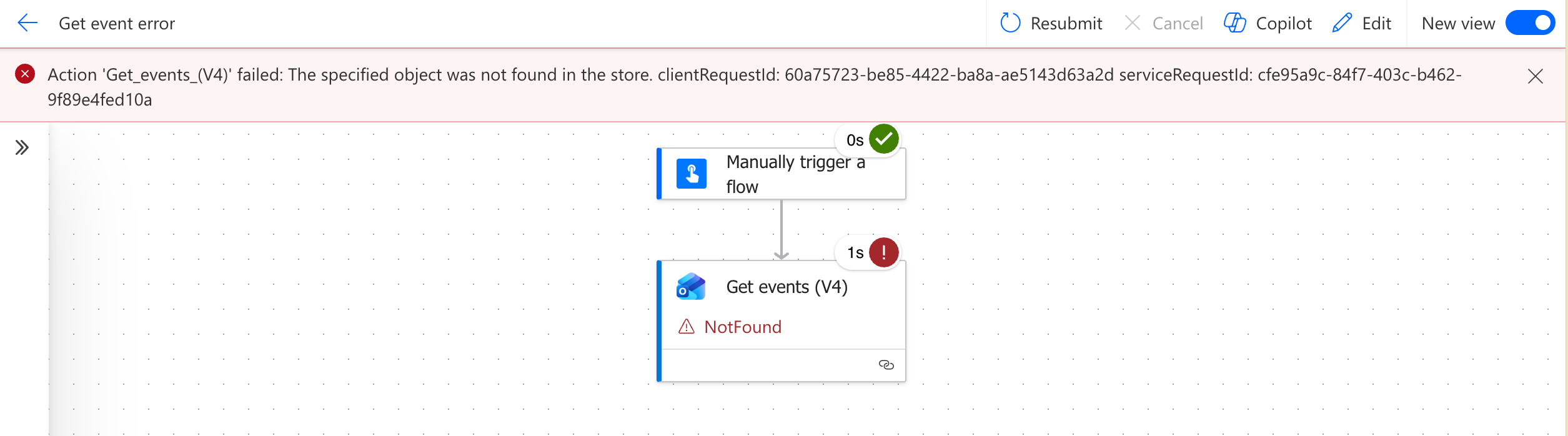
Quick checks
-
Identify the connection account used by the Office 365 Outlook connector in your flow.
-
Check if the shared calendar is still accessible/added to OWA. In my case, it was no longer present in the connection account’s Outlook on the web (OWA) calendar list.
The fix: Re-add calendar in OWA
Step 1: Add the shared calendar in Outlook on the web
Do this as the flow connection account (the same account used by the Office 365 Outlook connector connection).
In Outlook on the web (outlook.office.com):
- Go to Calendar.
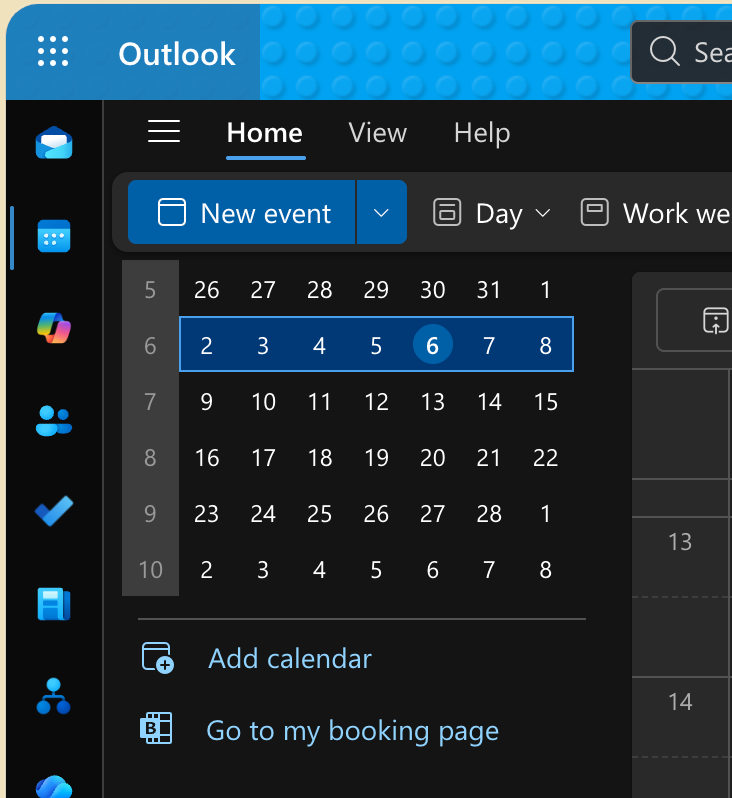
- Select Add calendar.
- Select Add from directory.
- Select your account to open the directory search.
- Enter the name of the shared mailbox/calendar (example:
Test Mailbox). - Choose where to add it (for example, under My calendars).
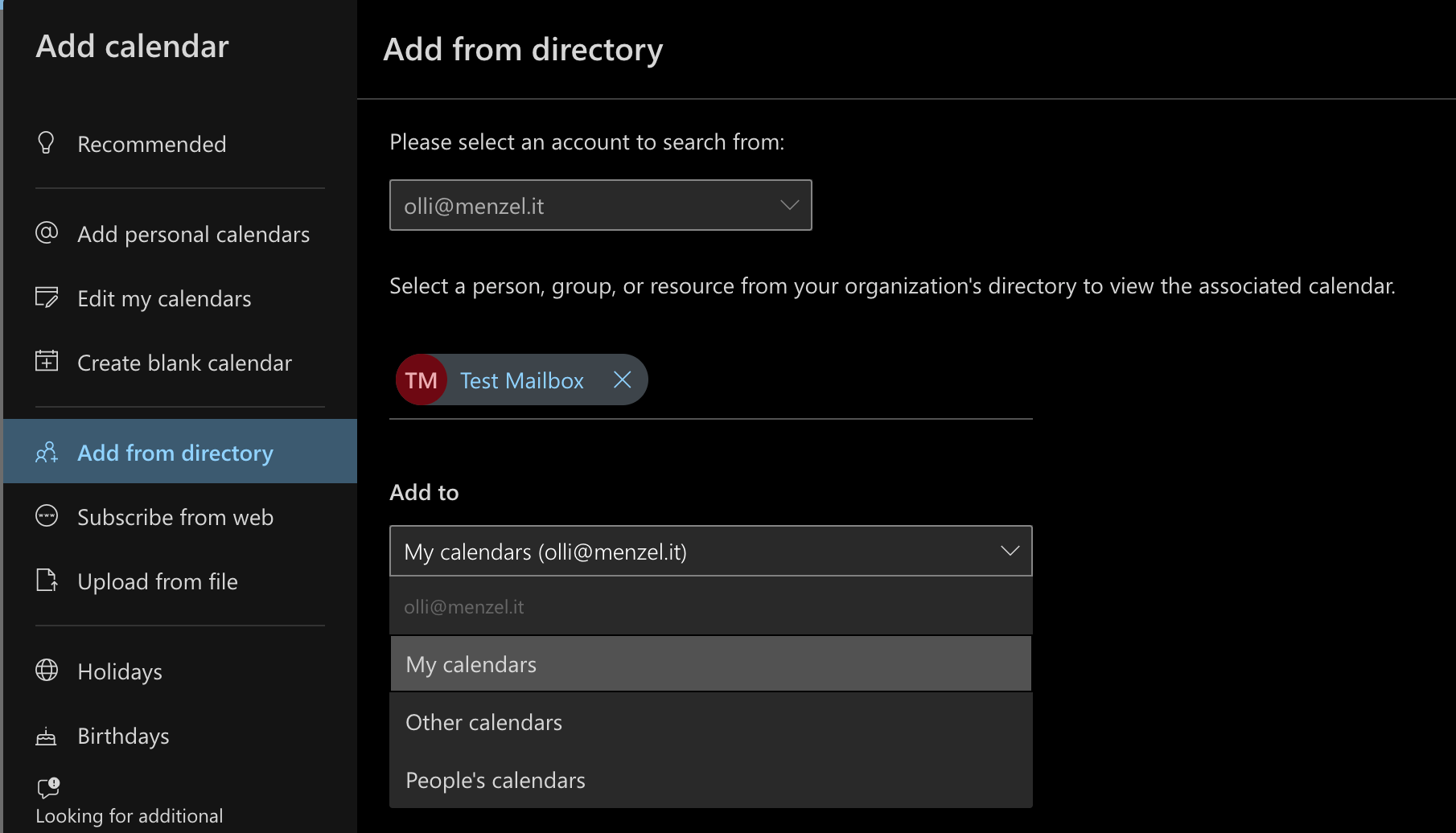
- Select Add.
Step 2: Re-select the calendar in the flow action
- Open the flow in Power Automate: Power Automate
- Select Edit.
- Open the Get events (V4) action (Office 365 Outlook).
- In the Calendar dropdown, re-select the shared calendar (example:
Test Mailbox).- If your action shows a calendar identifier, re-selecting ensures the Calendar Id is refreshed.
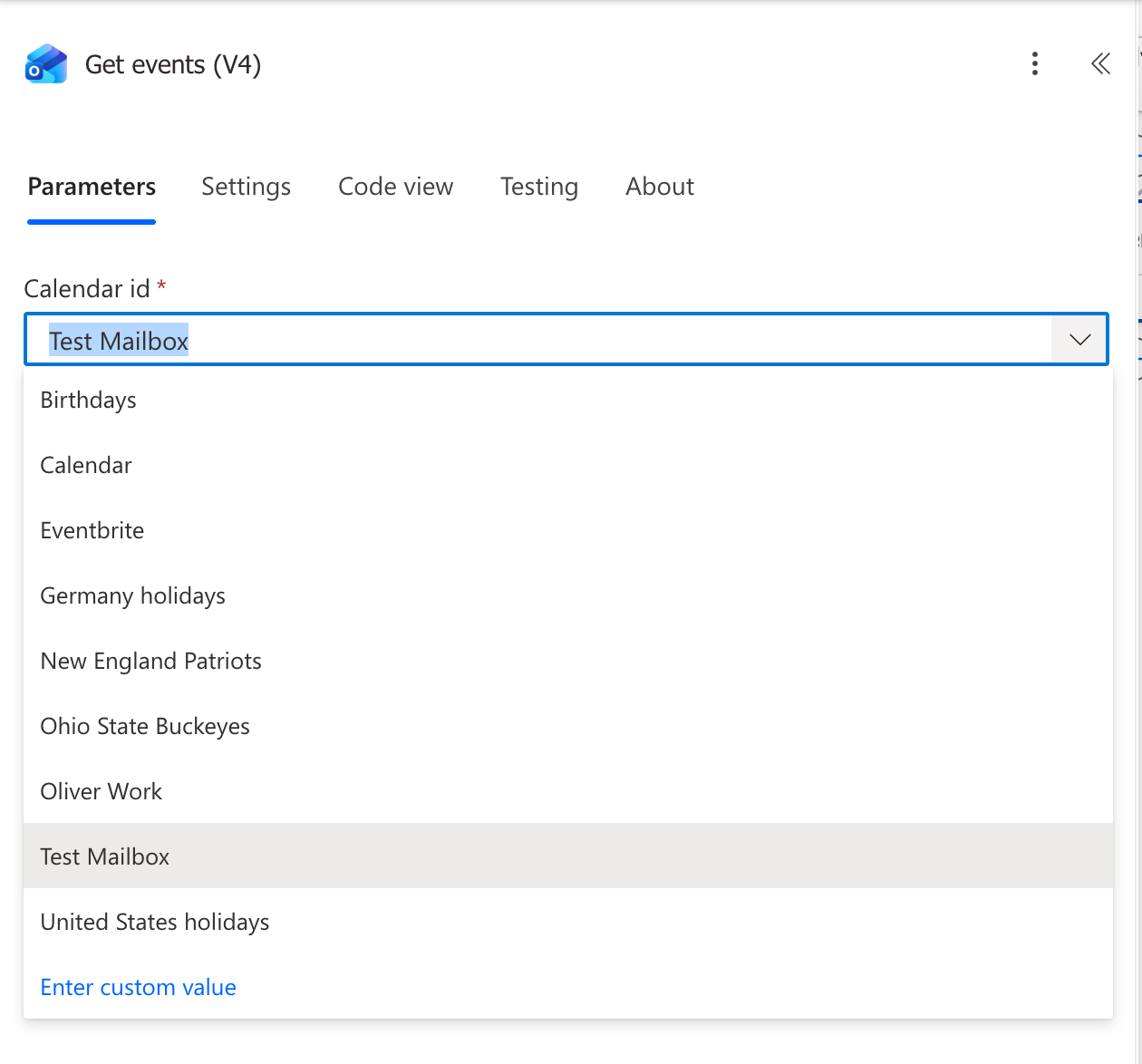
- If your action shows a calendar identifier, re-selecting ensures the Calendar Id is refreshed.
- Save the flow.
- Publish the flow again to ensure the changes take effect.
Step 3: Re-run and confirm
Re-run the flow and confirm Get events (V4) succeeds.
Troubleshooting checklist (if it still fails)
Try these steps if the flow still fails after re-adding the calendar and re-selecting it in the action:
-
Confirm you fixed the right account
- The OWA calendar must be added for the flow connection account, not just any mailbox admin.
-
Verify the calendar is visible in OWA
- In OWA → Calendar, you should actually see the shared calendar listed after you add it.
-
Refresh the flow’s calendar reference
- Re-select the calendar in Get events (V4), then Save and Publish again. This step mattered in the reproduced scenario.
-
Recreate or reauthorize the connector connection
- If the calendar is visible in OWA but the flow still fails, recreate/reconnect the Office 365 Outlook connection used by the action:
Common pitfall
- “It shows in Outlook desktop, so it should work.”
In this scenario, desktop Outlook visibility was not enough. The fix required adding the shared calendar into the connection account’s OWA calendar list.
Related documentation (official)
- Office 365 Outlook connector reference: https://learn.microsoft.com/en-us/connectors/office365/
- About shared mailboxes (Microsoft 365 admin): https://learn.microsoft.com/en-us/microsoft-365/admin/email/about-shared-mailboxes?view=o365-worldwide